How to Use Cooking Mode
How to Use Cooking Mode
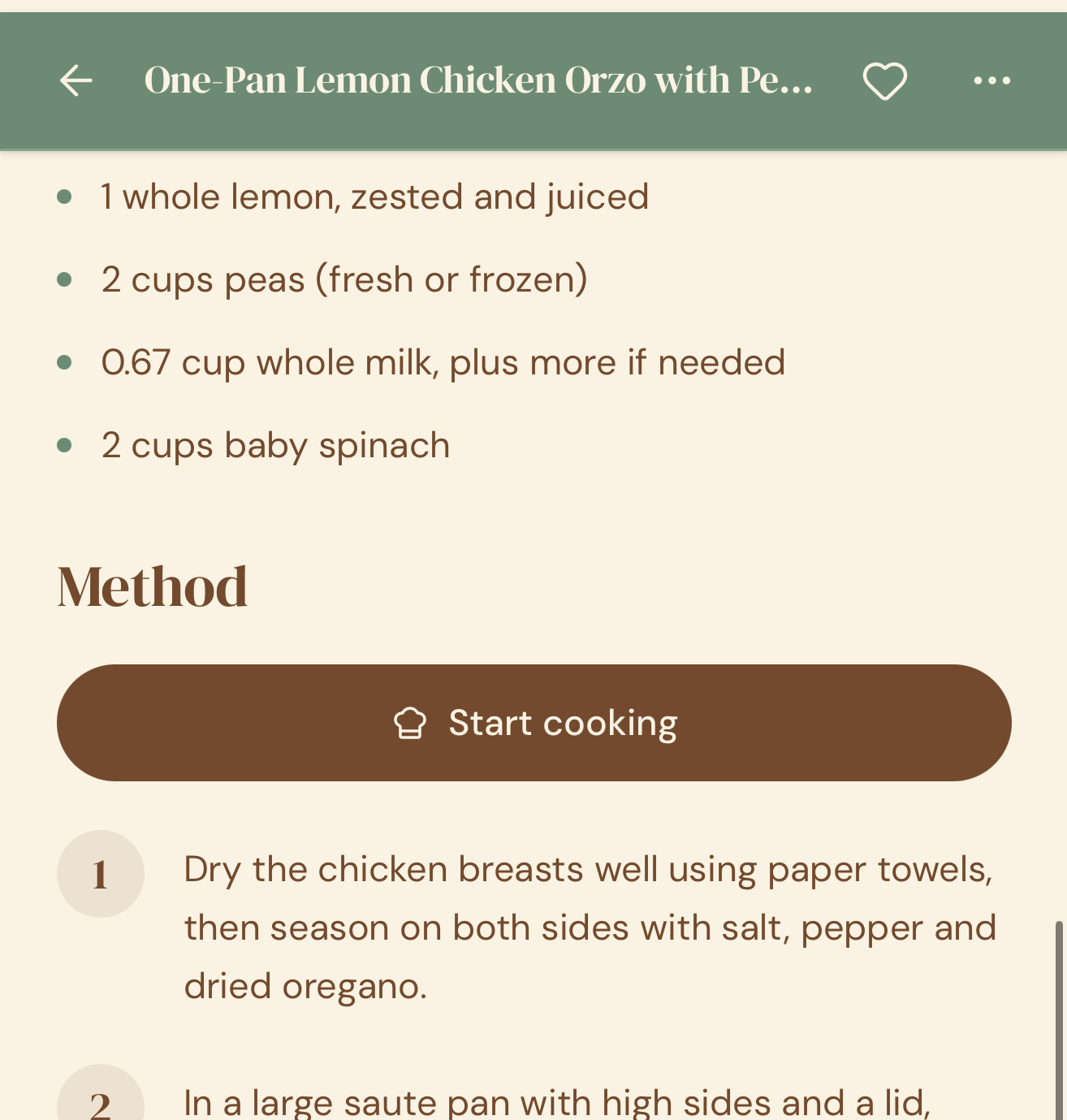
Quick answer: Open any recipe and tap Start Cooking. Your screen stays on, and each step is shown one at a time in large text. Tap or swipe to move to the next step — no scrolling, no waking your phone with messy hands. When you finish, Crumb marks the recipe as tried and gives you a quick way to save a photo, note, and rating.
Step-by-step
- Open a recipe from your library.
- Tap Start Cooking, which is just under the Ingredients list.
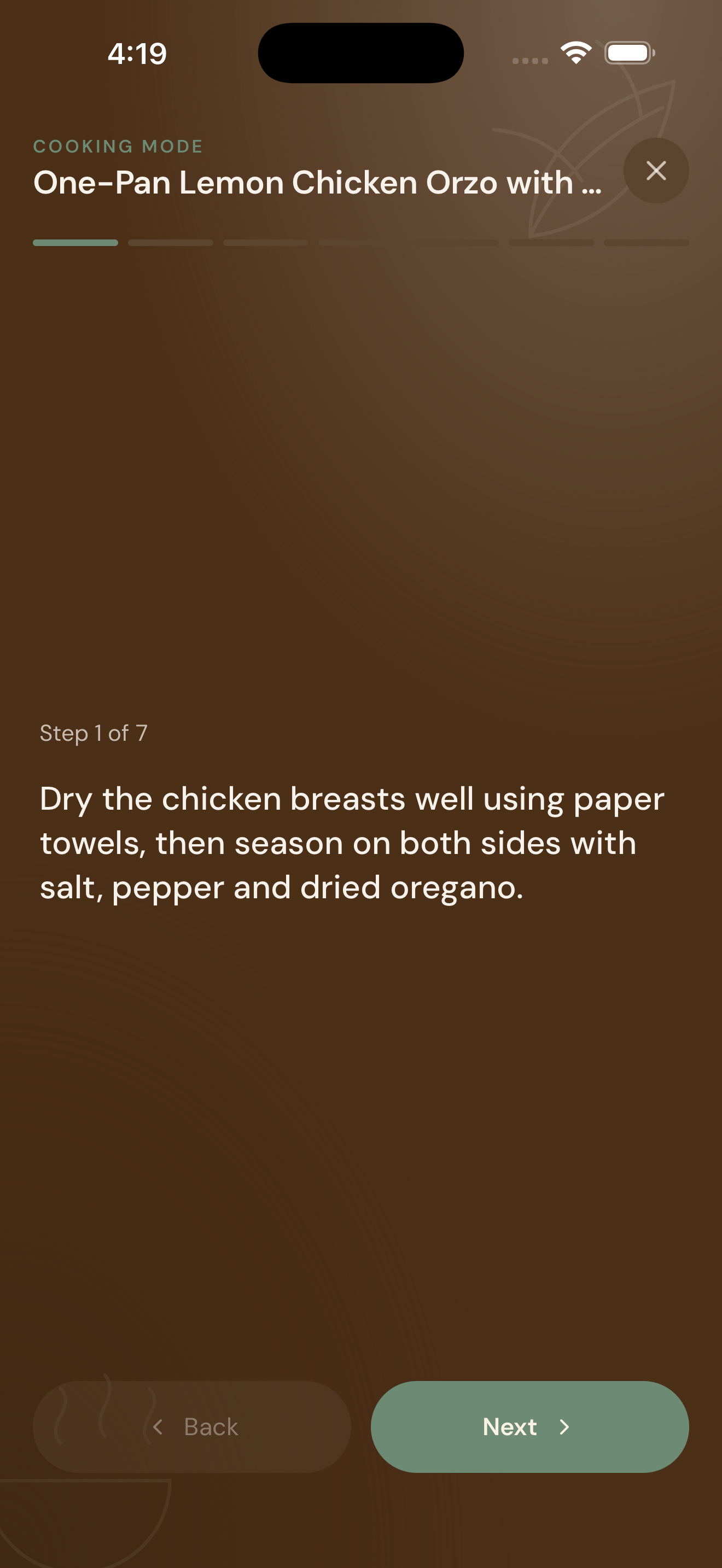
- The first step appears full-screen, in large, easy-to-read text. You can also view the Technique Glossary in the step.
- Tap the screen (or swipe) to move to the next step.
- Tap Exit at any time to return to the full recipe.
Quick technique reference, built in
Some steps use techniques that aren’t always obvious — things like “saute,” “deglaze,” or “julienne.” Crumb automatically matches these against a built-in technique library and shows a quick reference so you don’t have to stop and look it up elsewhere.
- Crumb starts you off with around 60 common cooking techniques already in the library.
- When a step contains one of these, tap the underlined word to see a short description right there in Cooking Mode.
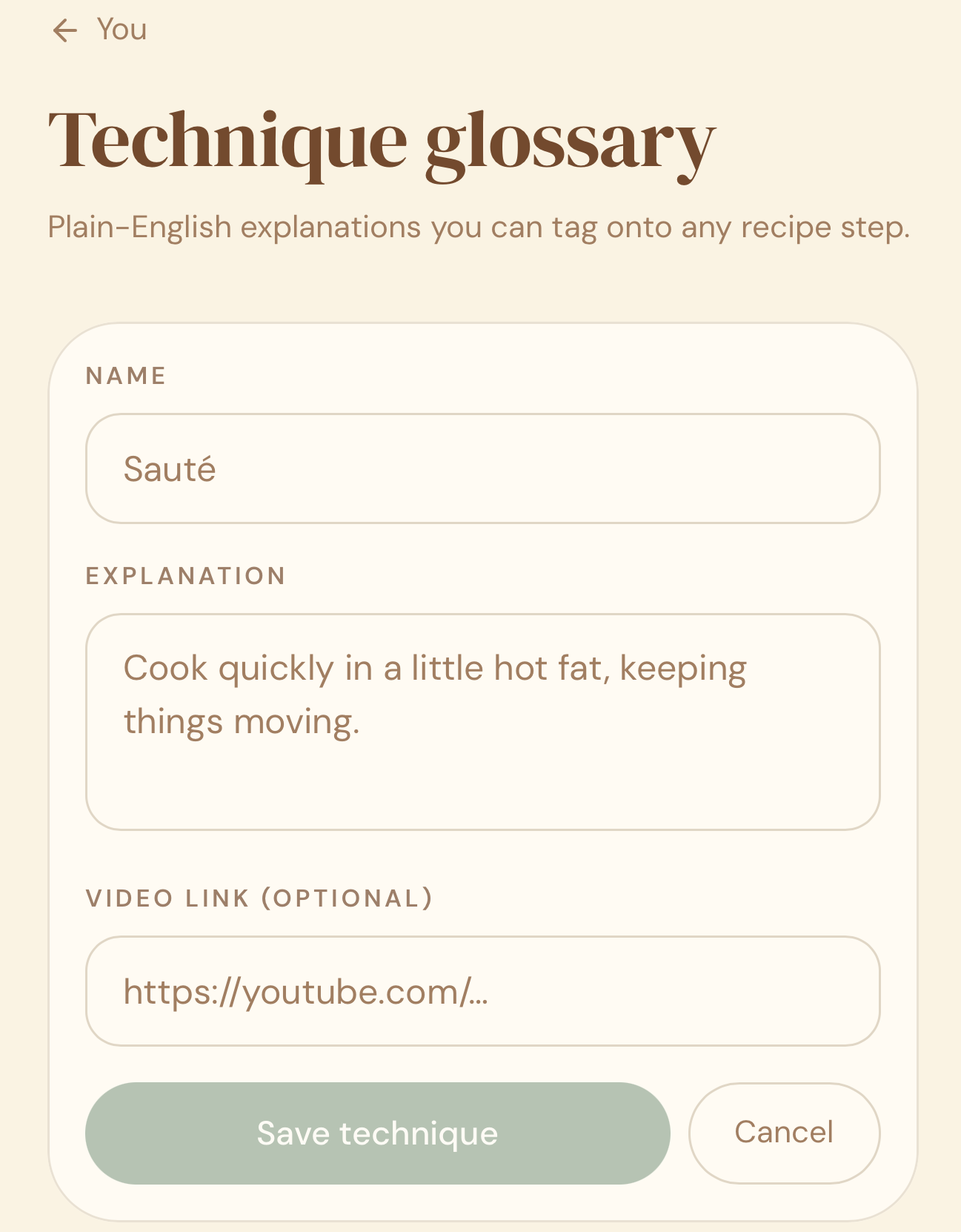
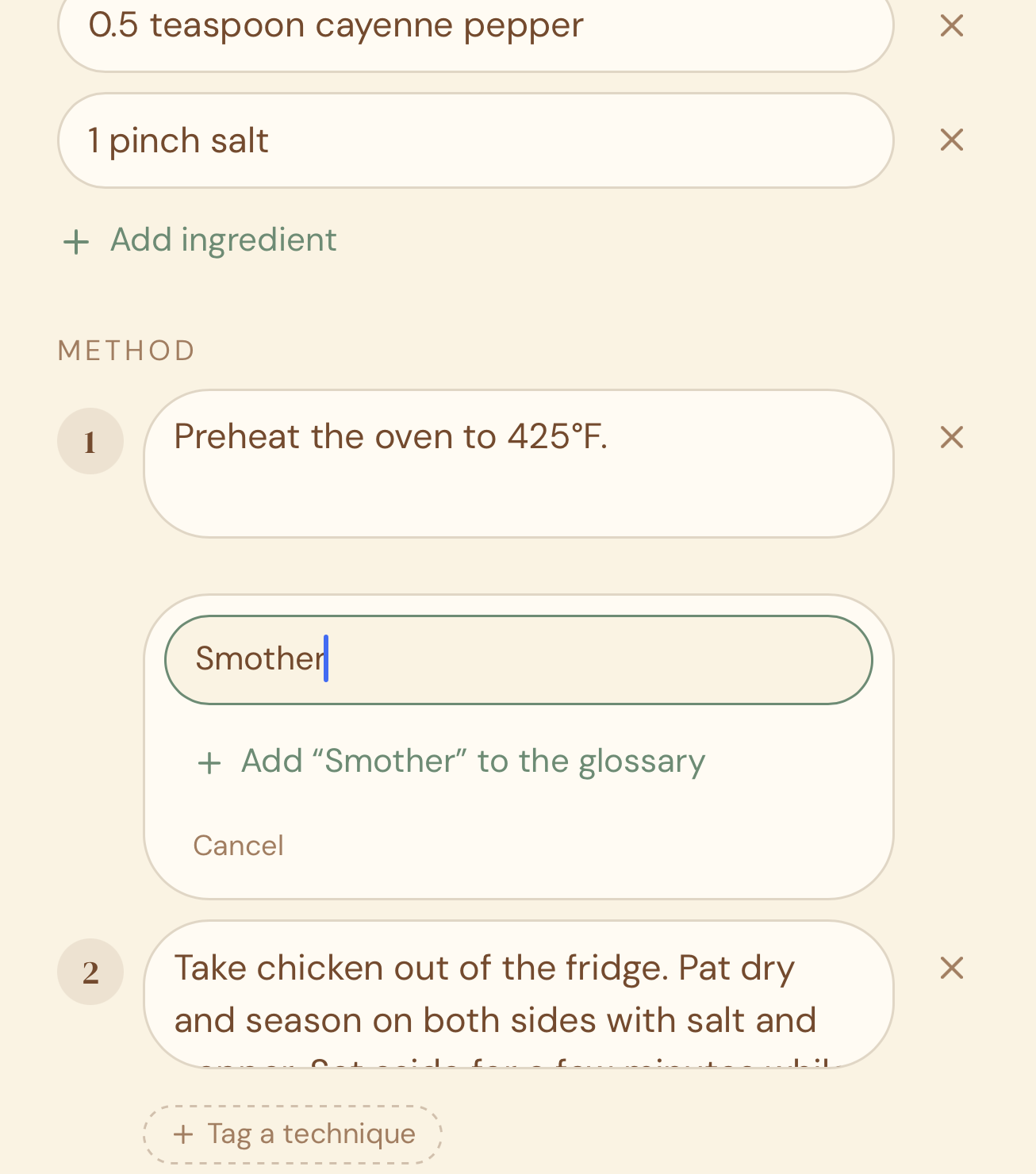
- Don’t see a technique you use often? You can add your own to the library, with your own description — it’ll be matched in future recipes too.
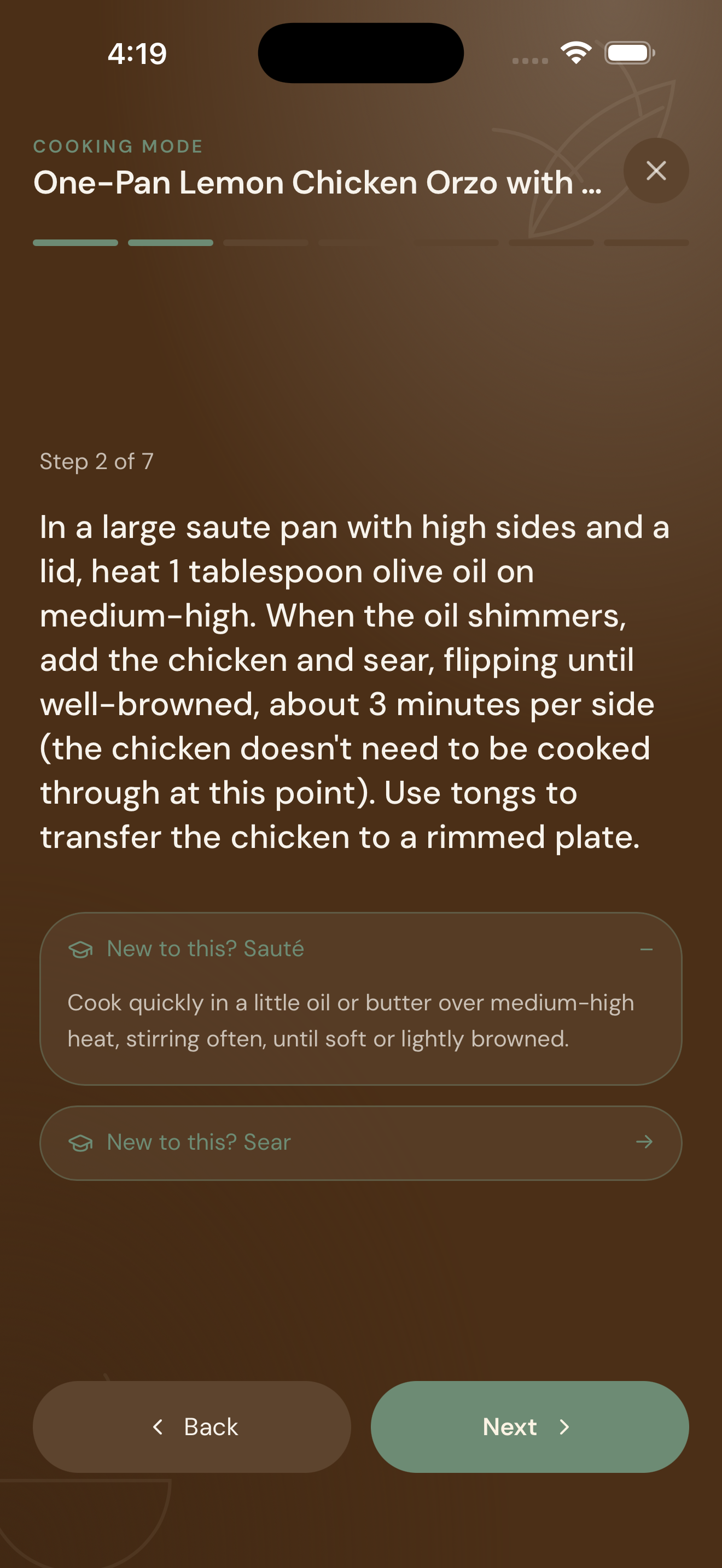
To add a Custom Technique:
- Go to You and then Techniques Glossary and add it there.
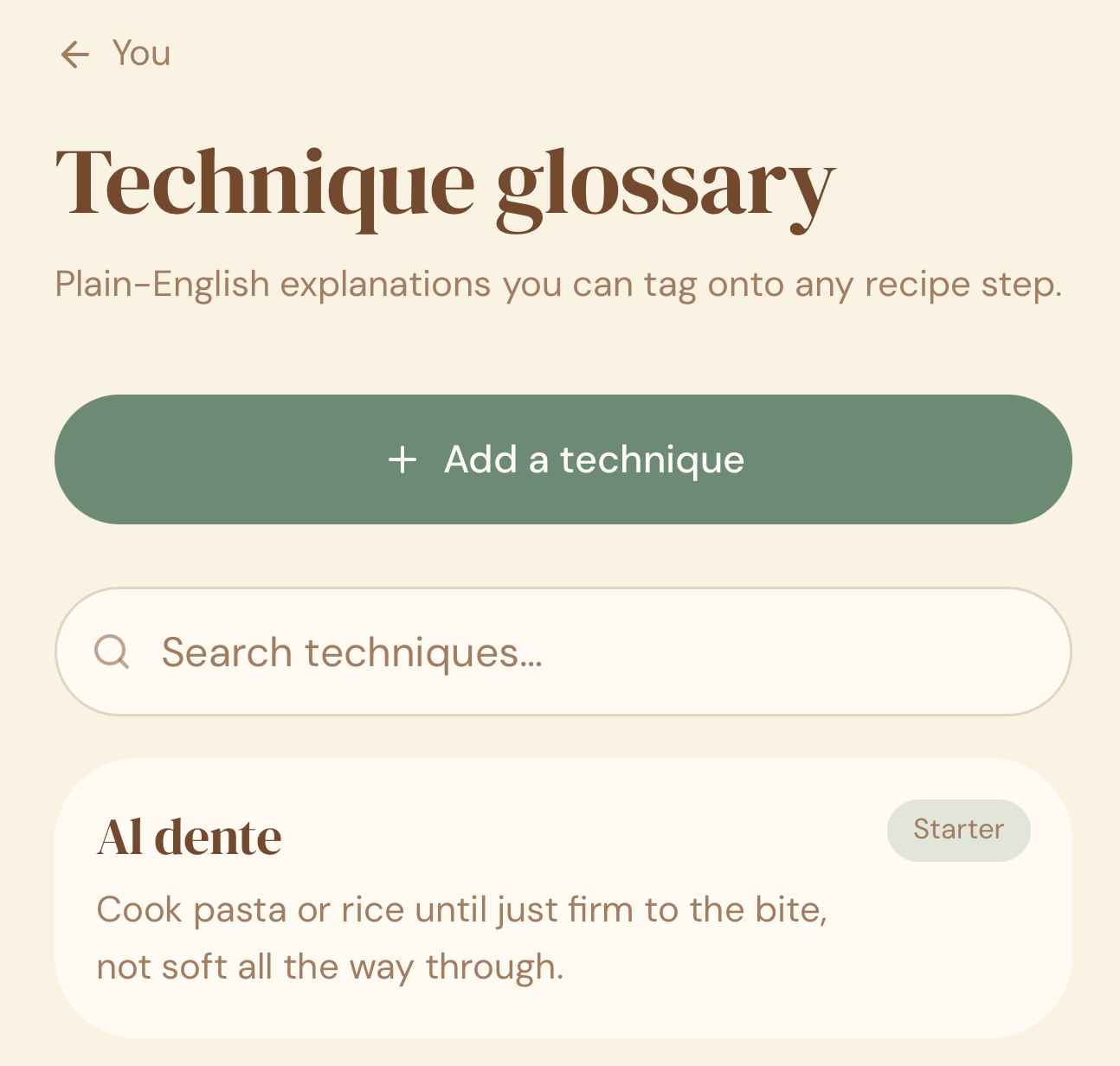
- Alternatively, you can also add it by editing any recipe and adding it to the method.
Finishing a recipe
Once you’ve viewed every step in Cooking Mode, Crumb automatically marks that recipe as Tried in your library — so you can always see what you’ve actually cooked, not just what you’ve saved.
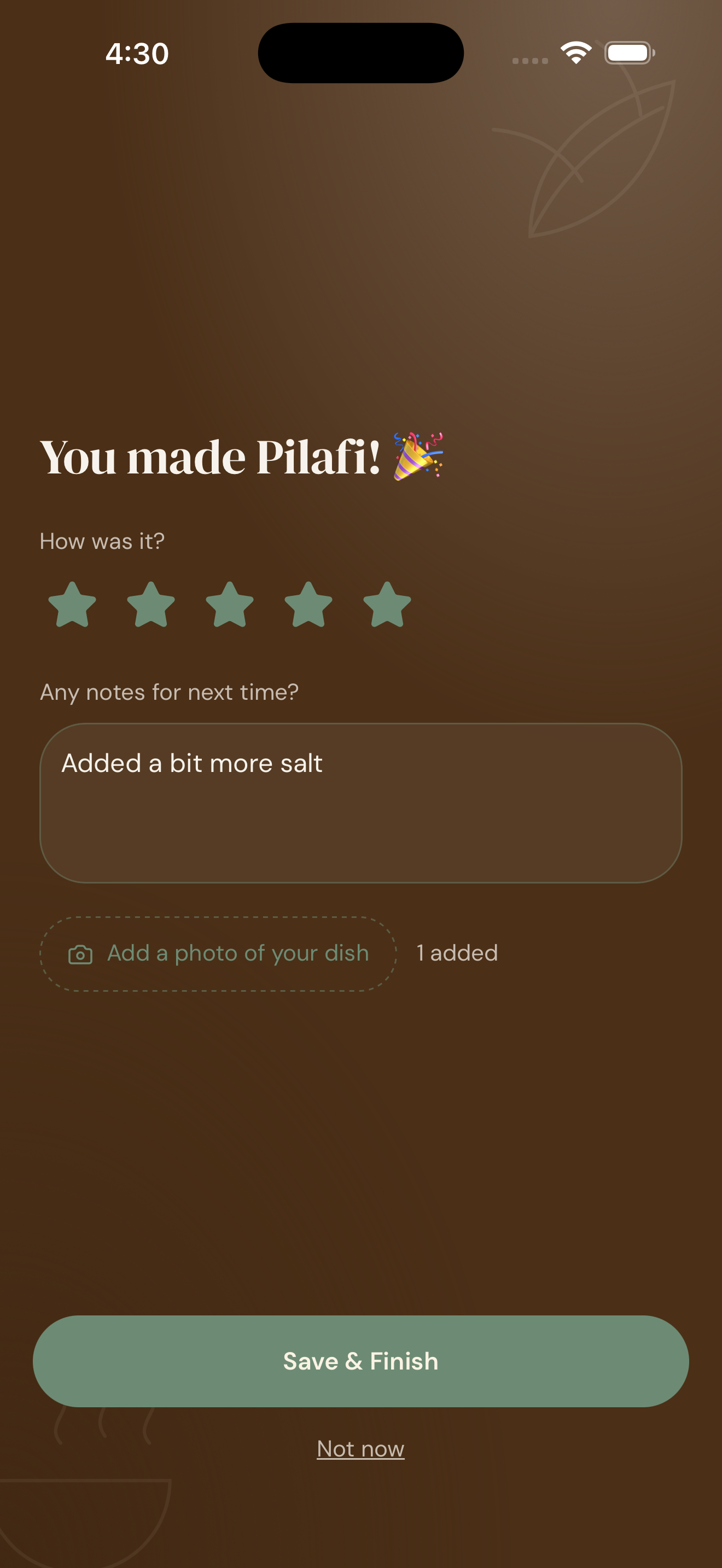
Right after your last step, you’ll get a quick prompt to:
- Take a photo of the finished dish
- Add a note or memory (e.g. “Made this for Sunday lunch”)
- Give it a rating
This takes a few seconds, right while the meal is fresh, instead of you having to remember to go back and add it later.
Why this matters
Recipe apps that lock the screen or make you keep scrolling and tapping mid-cook are a genuine annoyance when your hands are covered in flour or oil. Cooking Mode keeps your screen awake and shows exactly what you need — one step, full focus. The built-in technique reference means you’re not switching apps mid-recipe to look something up, and capturing the memory right at the end means it actually gets saved, instead of being a good intention that never happens.
Quick tips
- Your phone’s screen will stay on for the whole recipe — remember to exit Cooking Mode when you’re done to save battery.
- Works with any recipe in your library, however it was saved — imported or manual.
- A recipe only gets marked Tried if you go through Cooking Mode from start to finish — reading the recipe normally doesn’t count.
- Custom techniques you add are yours going forward — they’ll be recognized automatically the next time they show up in any recipe.
- Best used on a stand or propped against something at counter height so you can glance at it hands-free.