How to Save a Recipe Manually or from a Photo
How to Save a Recipe Manually or from a Photo
Quick answer: Open Crumb, tap Add Recipe, choose Photo or Type it in. For a photo, snap a picture of a handwritten card, notebook page, or cookbook — Crumb’s AI reads the handwriting or print and turns it into a structured recipe. For typing, just paste or write out the ingredients and steps yourself.
Step-by-step: from a photo
- Open Crumb and tap Add Recipe.
- Choose Photo.
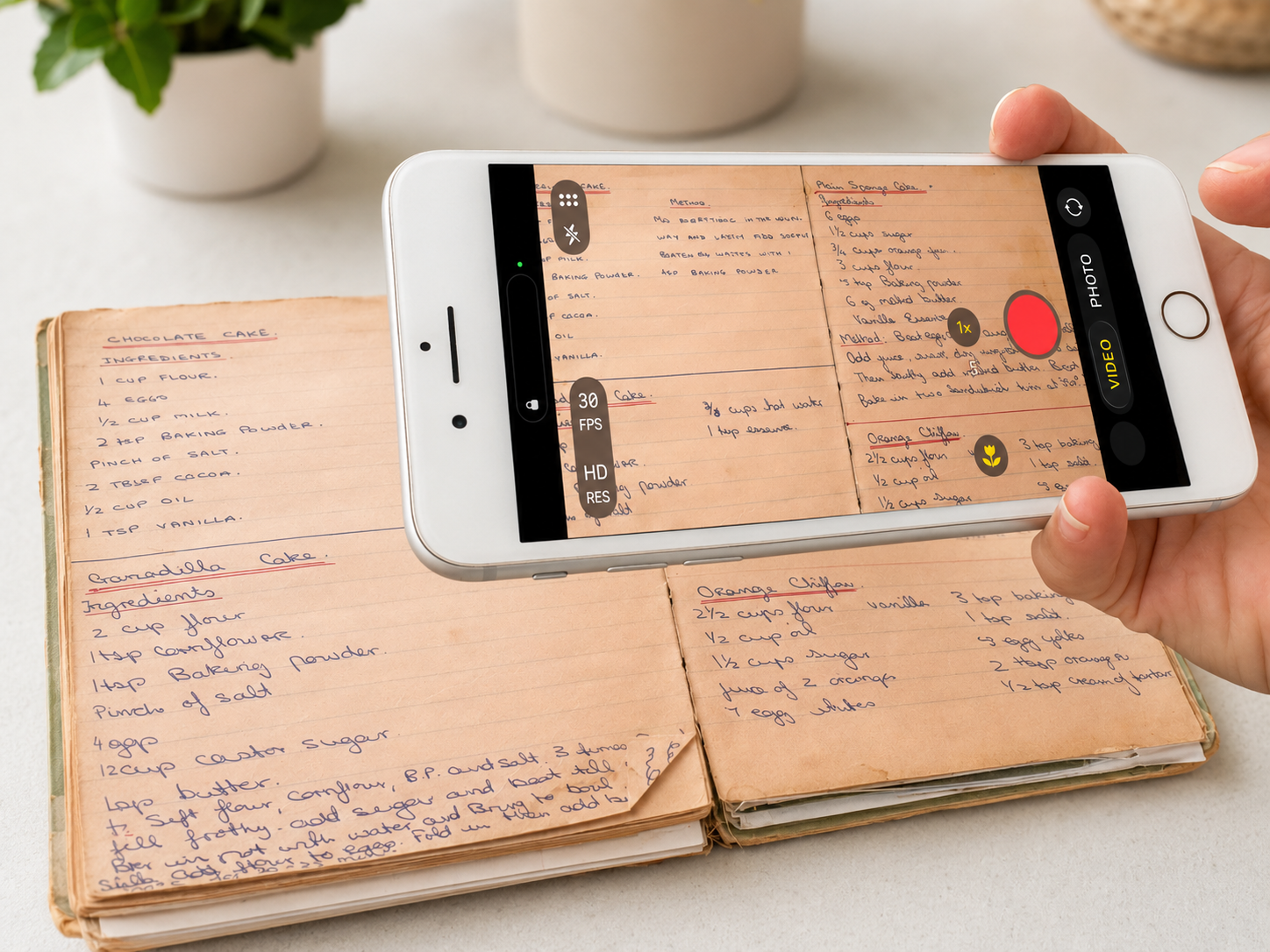
- Take a picture of the recipe — a handwritten card, a notebook page, a cookbook page, or even a screenshot.
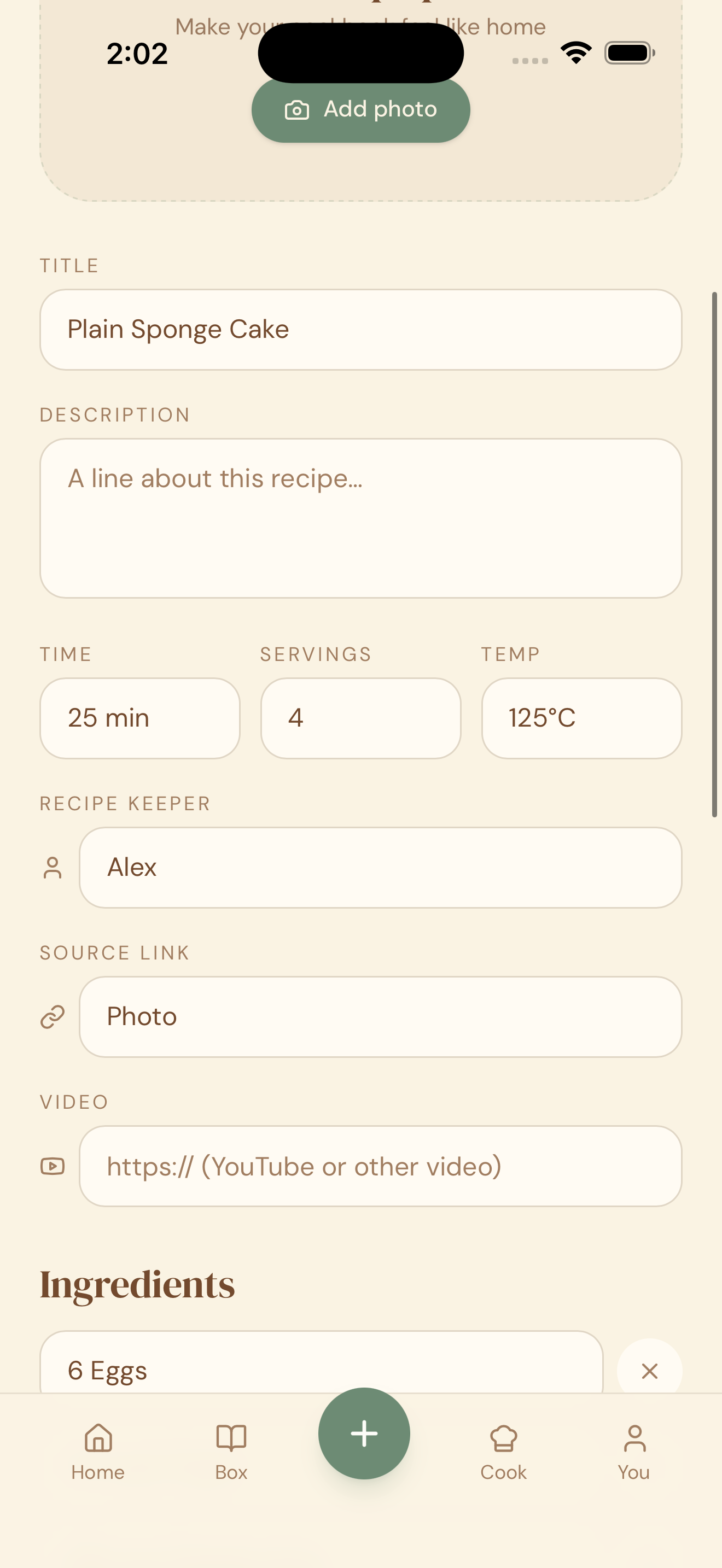
- Crumb reads the photo and pulls out the title, ingredients, and steps.
- Review the extracted recipe, fix anything that didn’t read perfectly, and tap Save.
Step-by-step: typing it in
- Open Crumb and tap Add Recipe.
- Choose Type it in.
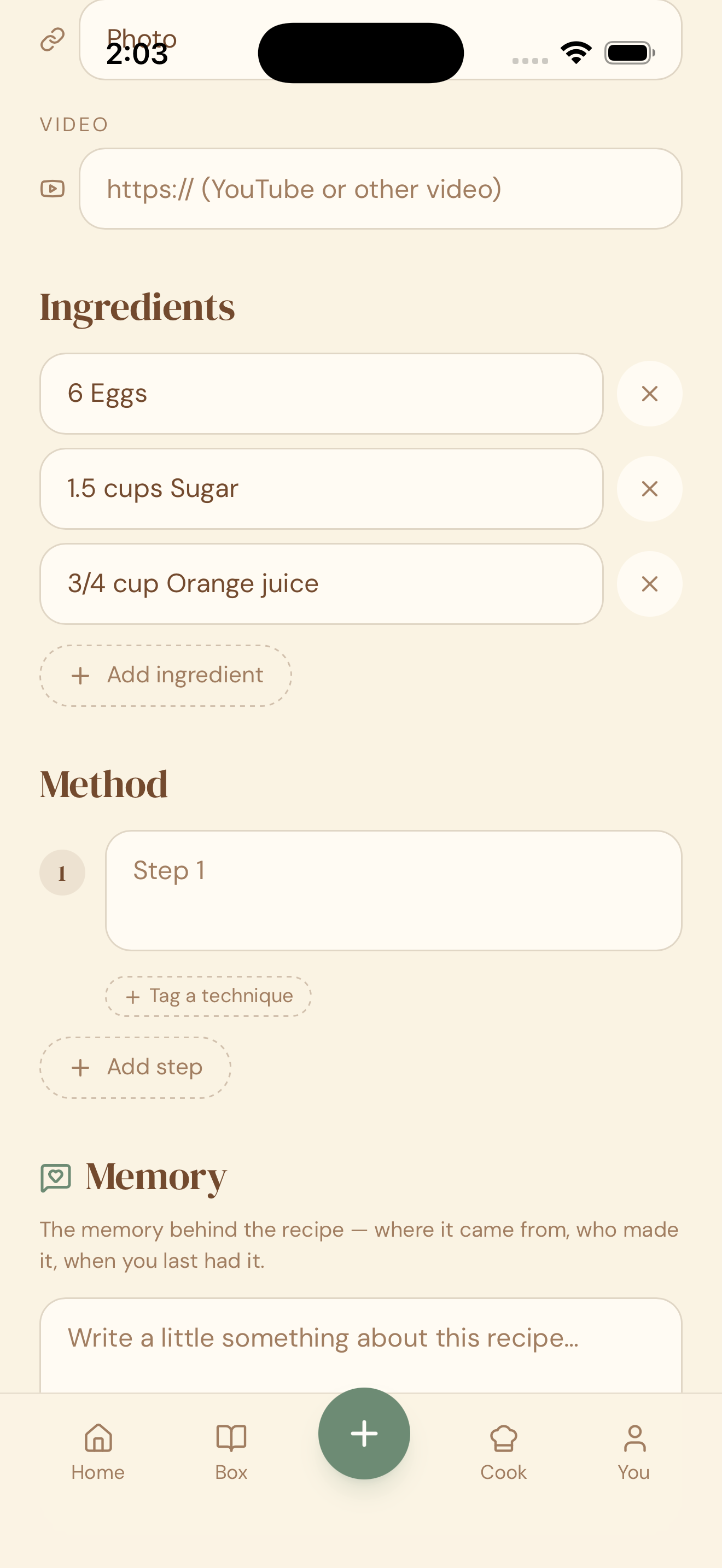
- Add a title, then add each ingredient and step using the + button.
- Fill in servings, cook time, and any tags you’d like.
- Tap Save.
Why this matters
Not every recipe worth keeping has a link. The best ones are often the ones with no digital trace at all — grandma’s handwriting on a stained index card, a page torn from an old cookbook. This is how those get preserved properly, instead of living as one more photo buried in your camera roll.
Quick tips
- Photos of handwriting work best in good light, straight-on, with the full recipe in frame.
- If the handwriting is very old or faded, Crumb will still try — just double-check the ingredients on the review screen before saving.
- Once saved this way, you can still add the memory behind it — who it belonged to, when you first made it, and photos of the finished dish.