How to Add Memories, Notes, and Photos to a Recipe
How to Add Memories, Notes, and Photos to a Recipe
Quick answer: Open any recipe in your library and scroll to the Memories section. Add a note, the date you first made it, who it belongs to, photos of the finished dish, and what you’d change next time.
Step-by-step
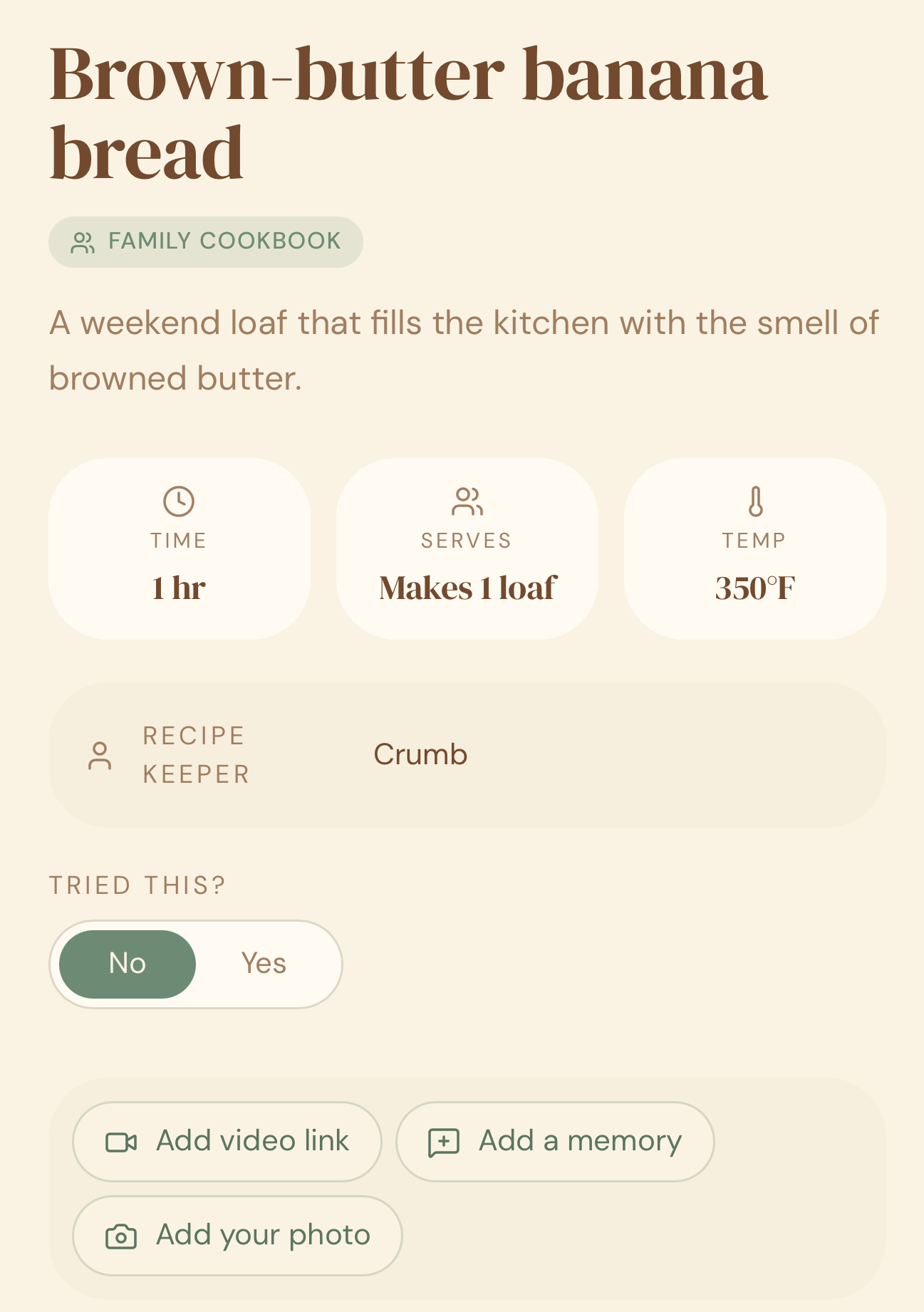
- Open a recipe from your Box.
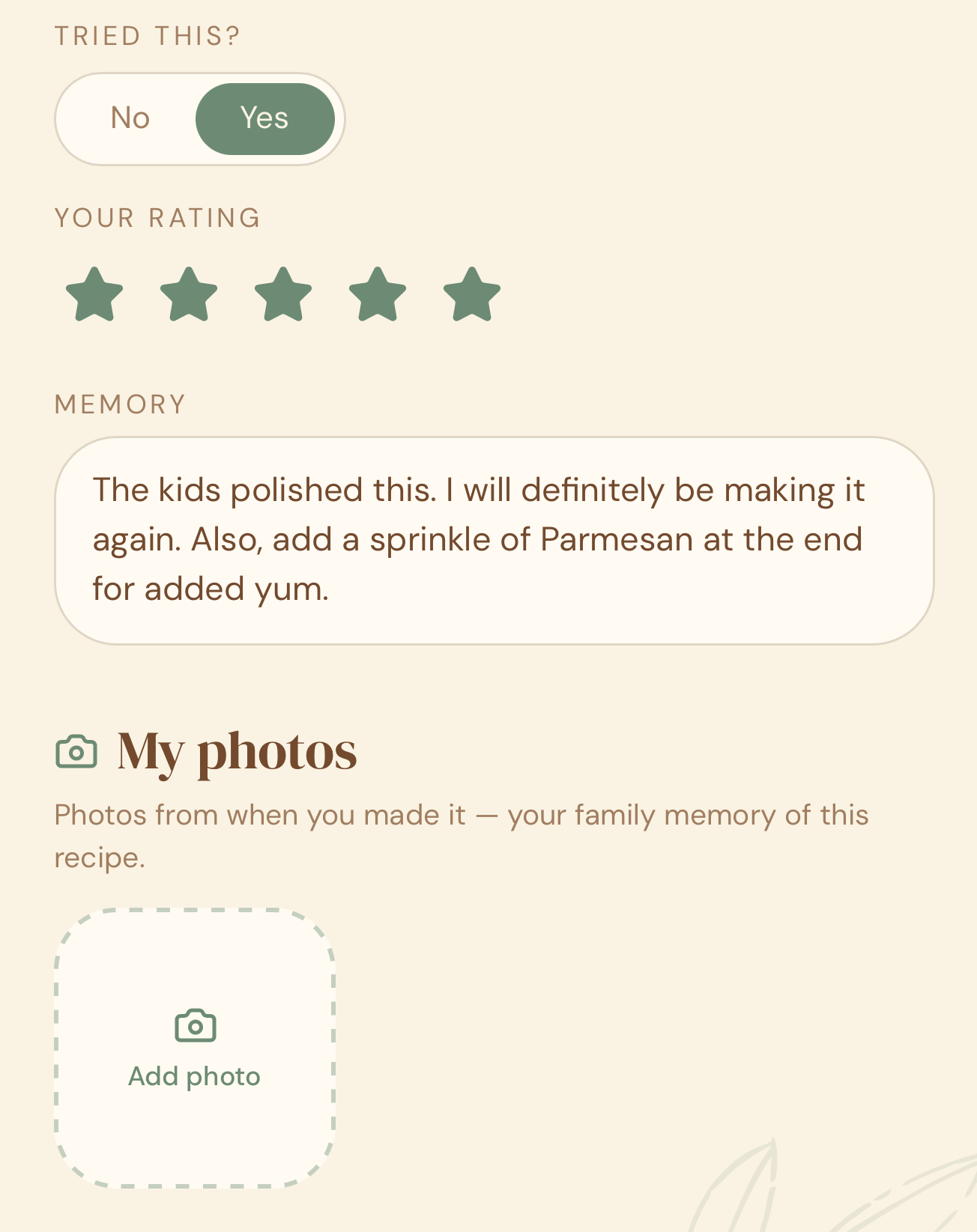
- Scroll to the Memories section, below the Tried This setting.
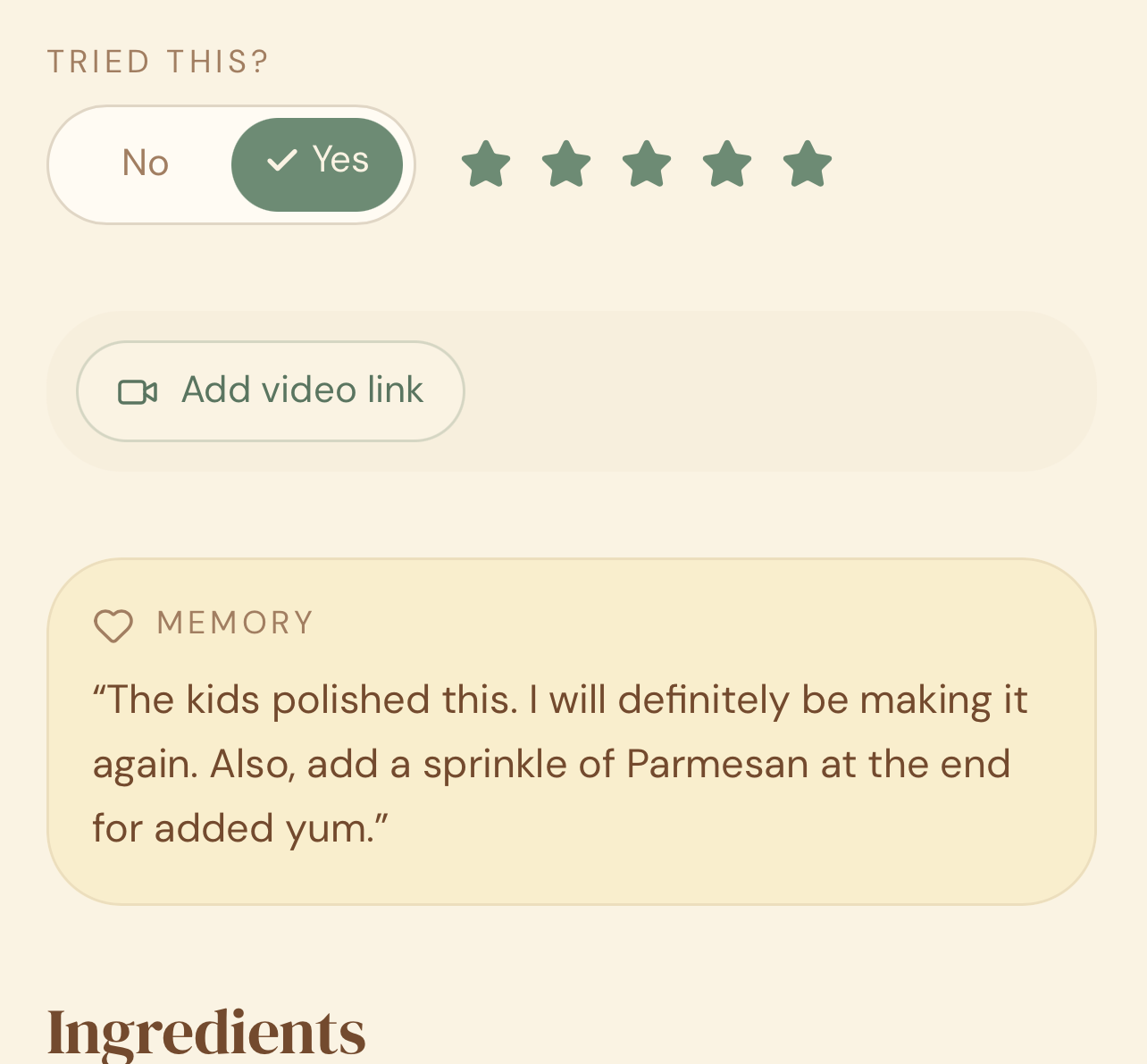
- Set recipe to Tried This and give it a rating.
- Tap Add a Memory.
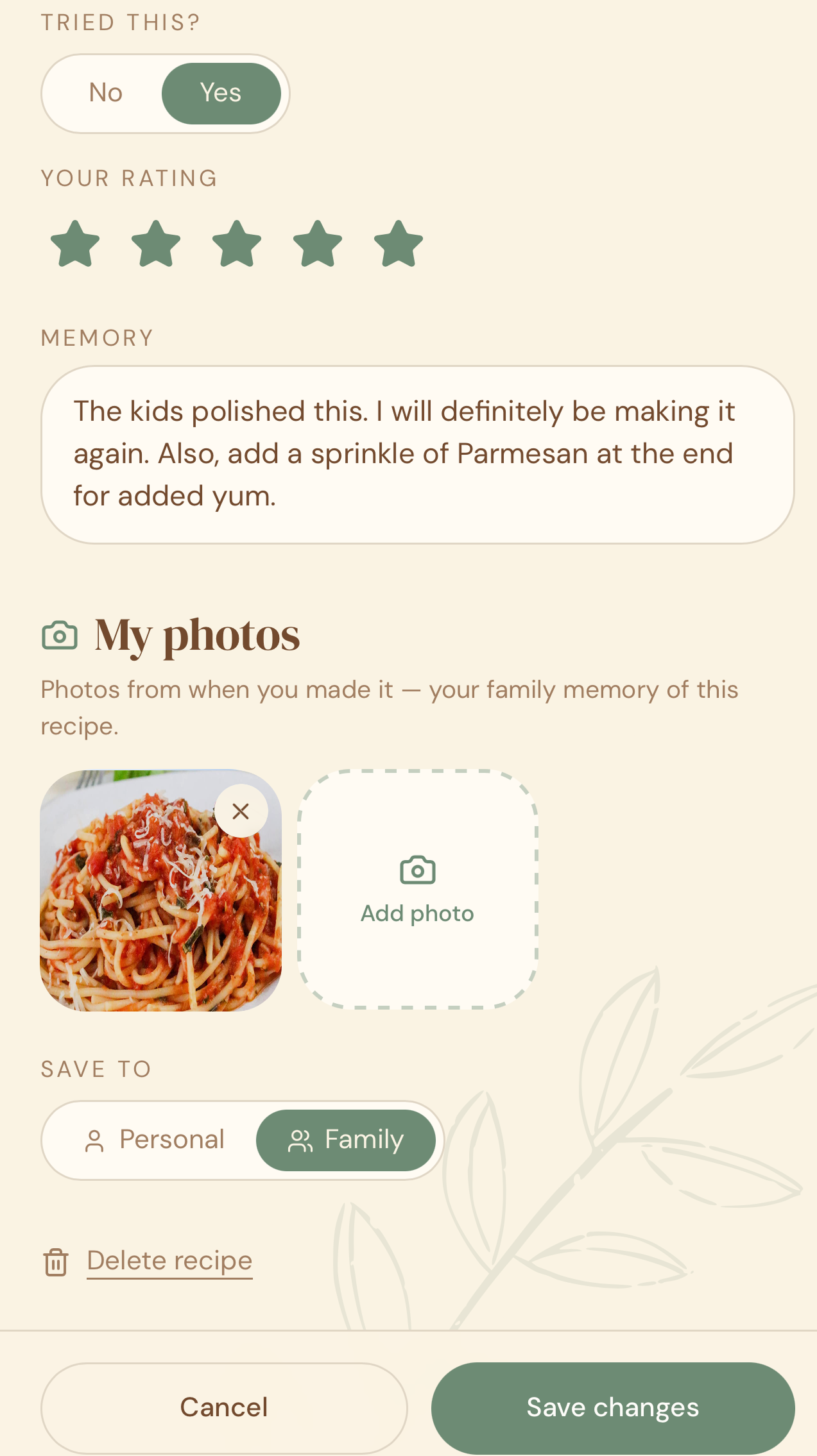
- Add whatever you like here, for example:
- “Made this for Dad’s 60th birthday”
- “Kids polished the whole thing. Definitely a winner!!”
- What you’d change next time
- Tap Save.
Why this matters
A recipe is just information. What makes it worth keeping is everything around it — whose it was, when you made it, what it meant. This is the part that turns a recipe app into something a family actually holds onto for good, instead of one more app that gets deleted.
Quick tips
- You can add memories to any recipe — imported or manually entered.
- Photos are private to you unless the recipe is shared to a family cookbook.
- Come back and add to a memory any time — most people build these up over multiple times cooking the same dish.
- Sharing a recipe with someone outside your family cookbook? You choose whether to include your memory photos in the link — see how to share a recipe with anyone.