How to Add Crumb to Your iPhone Share Sheet
How to Add Crumb to Your iPhone Share Sheet
Quick answer: Tap Share on any recipe page or video, scroll the app row to the end, tap More, then switch on Crumb. From then on, Crumb appears in your Share Sheet everywhere on your phone.
Step-by-step
- Open any app where you’ve found a recipe (Any browser, YouTube, etc.).
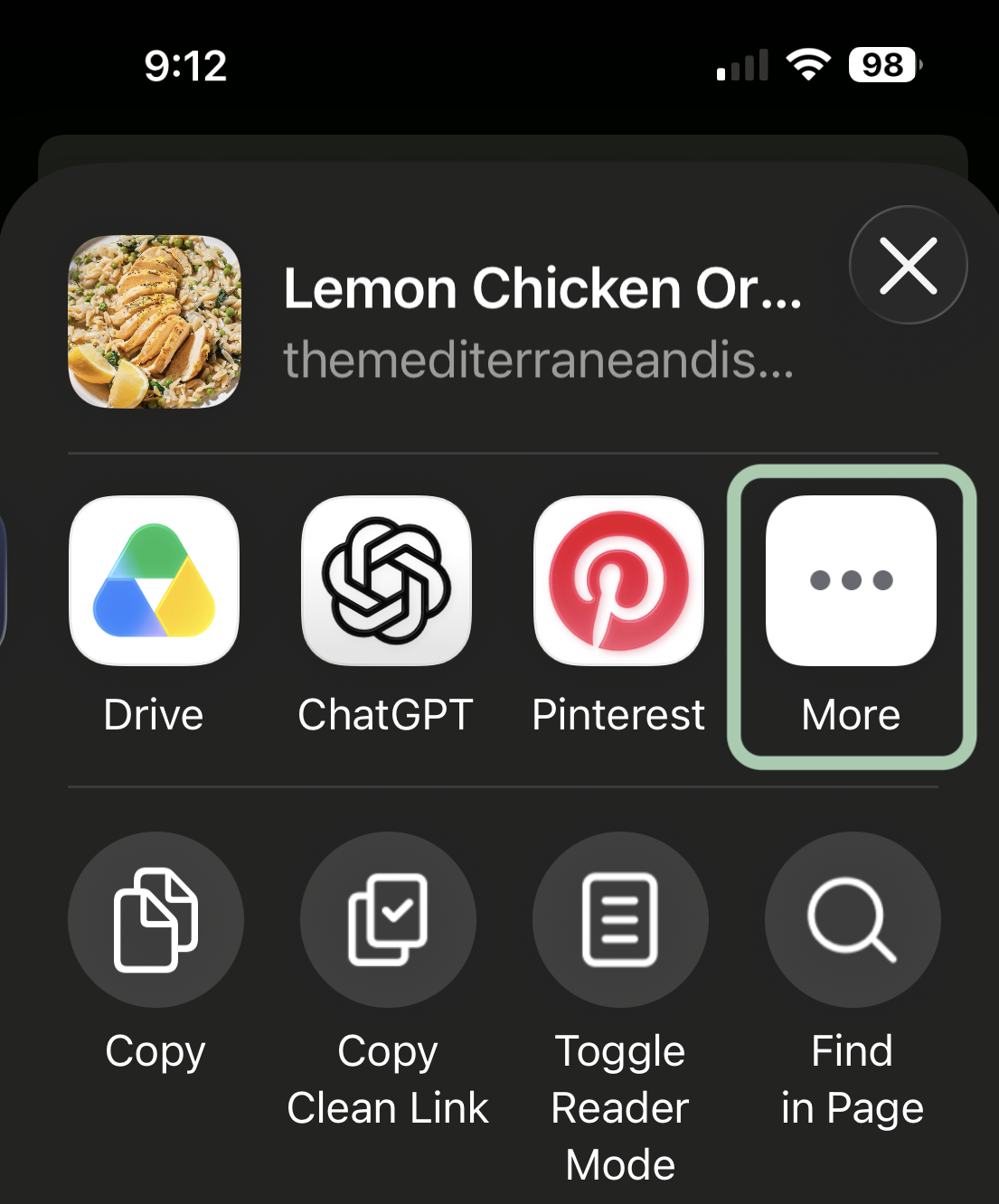
- Tap the Share button.
- Scroll all the way to the right in the row of app icons and tap More.
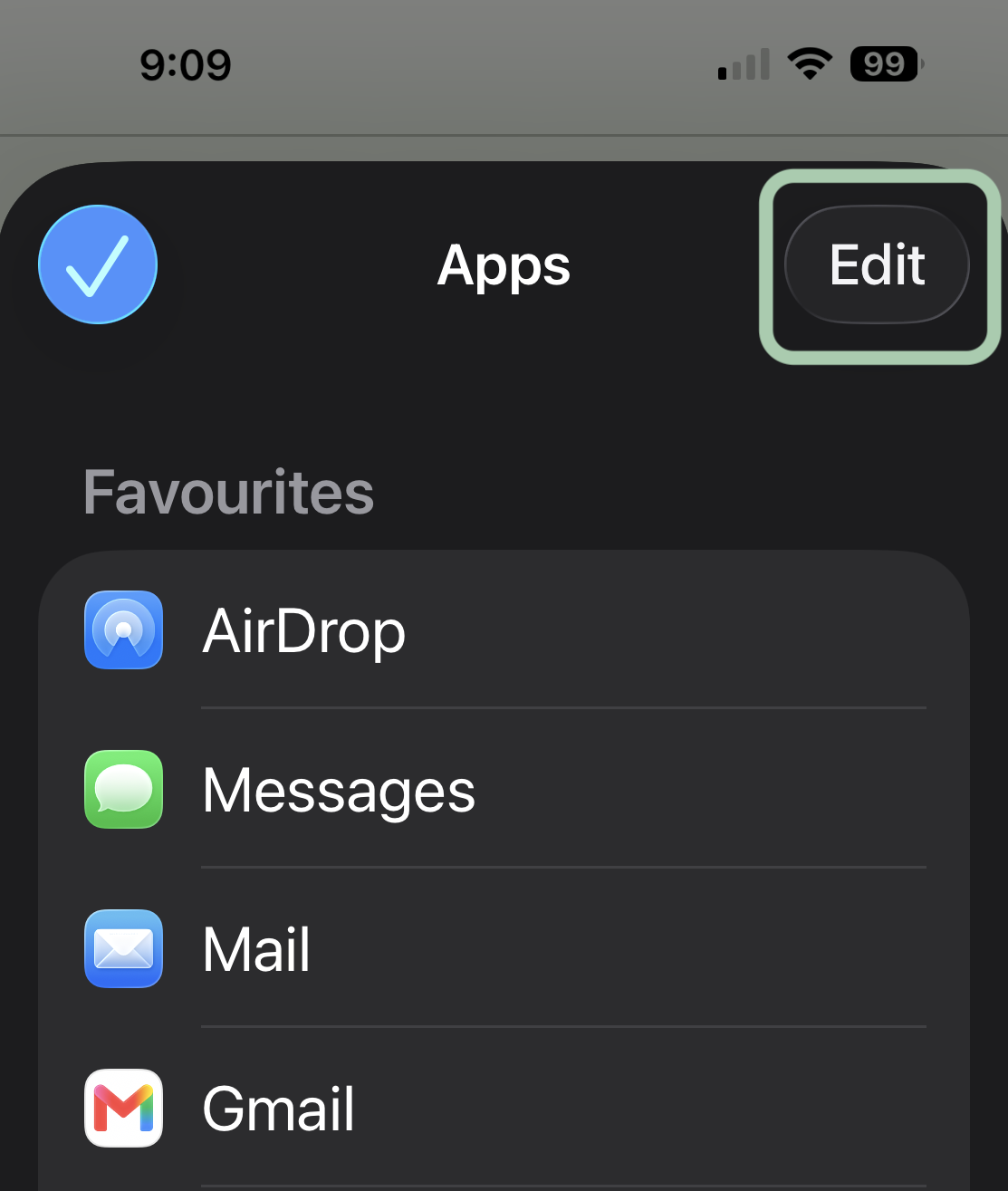
- Tap Edit
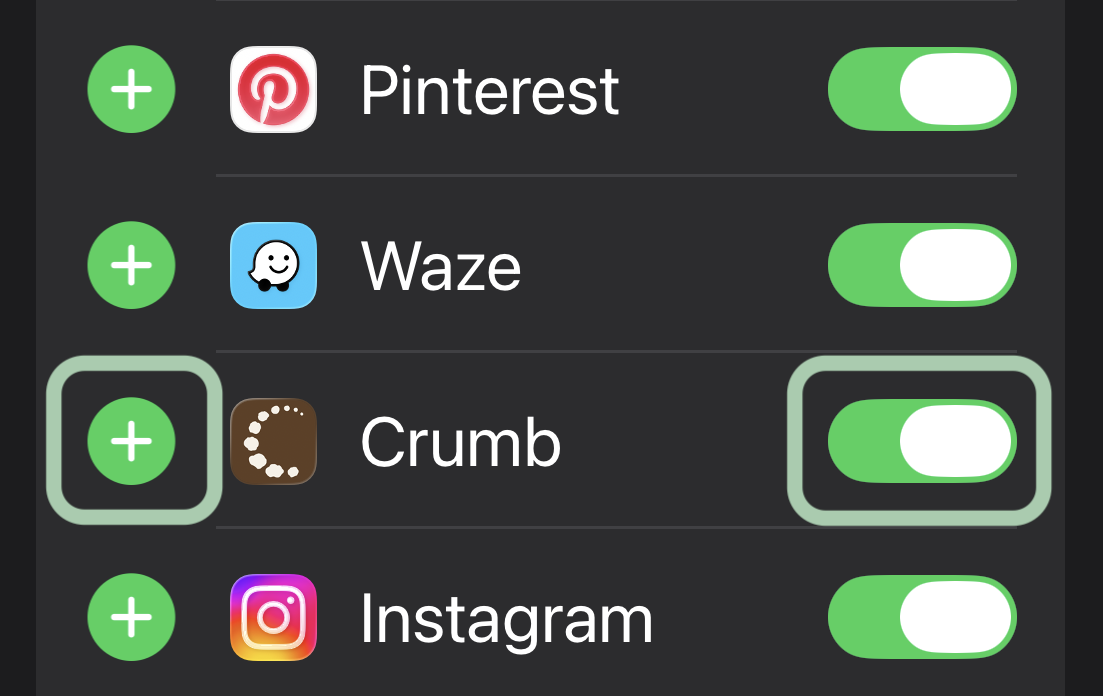
- Find Crumb in the list and switch it on and tap the + icon.
- Optional: drag Crumb up the list so it’s one of the first options you see.
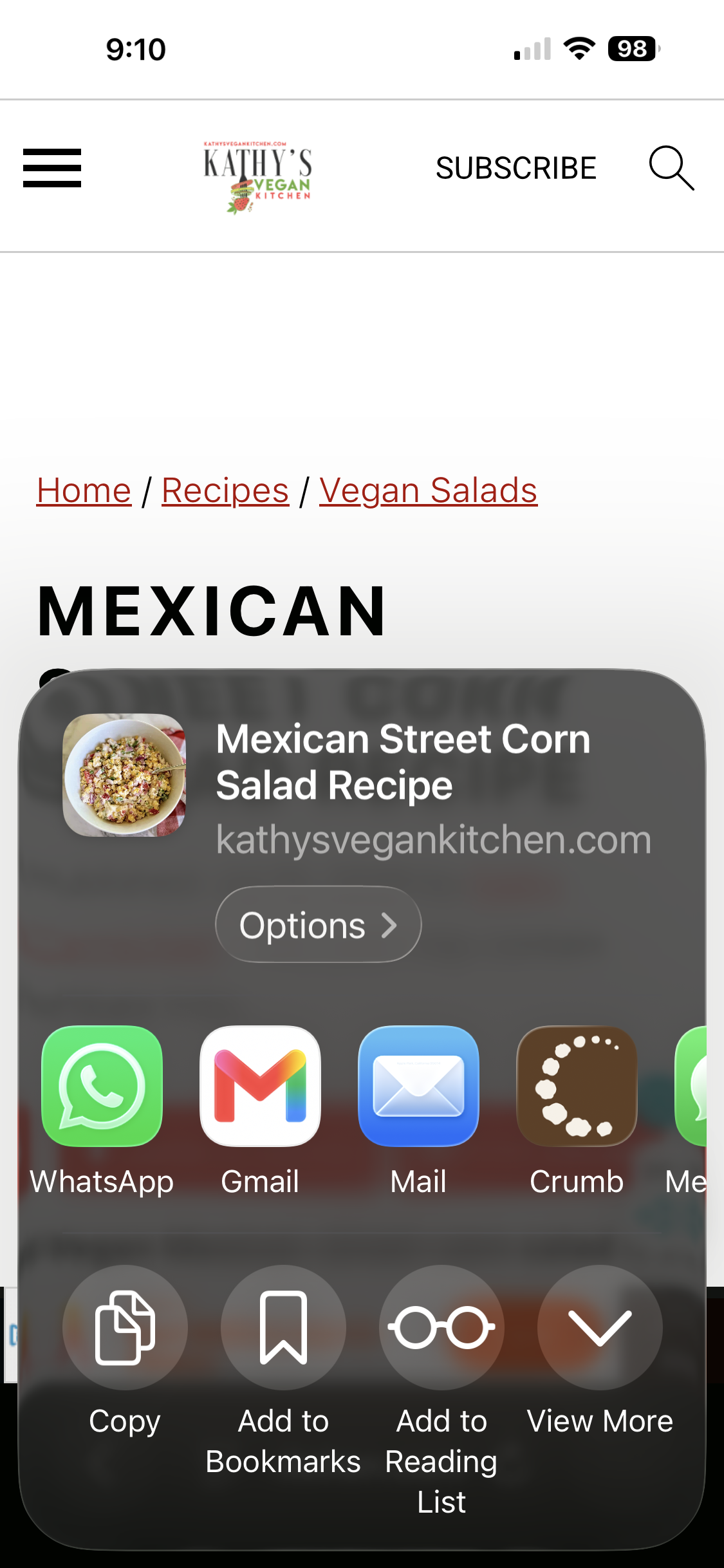
- Tap Done.
Why this matters
Once Crumb is in your Share Sheet, you never need to copy a link and switch apps. Find a recipe, tap Share, tap Crumb — done. This is the fastest way to build up your family cookbook without breaking your scrolling flow.
Quick tips
- You only need to do this once — it stays saved to your phone after.
- Works from Safari, YouTube, and any app with a native Share button.
- If Crumb doesn’t appear under More, make sure the Crumb app is installed and you’ve opened it at least once.